Google Sites Website Design: Affordable, Editable Websites with No Annual Maintenance Fee
This fixed-price Google Sites package is for business owners and anyone who needs a profile, landing page, sales page, or advertising page without a recurring website-maintenance commitment—and who wants the option to update site content themselves.
Google Sites: Advantages
- A free Google product Available at no cost with a free Gmail account or a Google Workspace account.
- Create multiple sites and pages You can create as many sites and pages as you need, subject to the 15 GB storage limit on a standard free Google Account.
- Built-in site administration You and people you authorize can edit the site from any location with internet access.
- Hosted on Google infrastructure Google's hosting provides a high level of availability, stability, and protection against common hosting problems.
- Connect a custom top-level domain Connect a domain you already own or register a new one, whether through Google or another registrar you trust.
Google Sites: Limitations
- Limited control over technical SEO Many technical SEO settings cannot be customized. For example, the title shown in the browser tab is tied to the page name, and files such as robots.txt and .htaccess cannot be edited.
- Limited control over page size and speed The platform controls its frameworks and performance techniques. Site owners cannot freely add or modify the underlying implementation.
- Fewer design and customization options Server-side code such as PHP or Node.js cannot be installed. Only limited external HTML and JavaScript can be embedded, so sites may look simpler and more alike than fully custom websites.
- No built-in membership system or database Google Sites is not suited to complex e-commerce, shopping carts, member logins, back-office systems, or forums. Typical workarounds are links, buttons, and embedded contact forms.
- Moving to another platform can be difficult If you later move from Google Sites to WordPress or another platform, site data cannot simply be exported as a ready-to-run site; rebuilding may be necessary.
- Limited blog and article management Google Sites does not provide a flexible CMS like WordPress. Publishing and organizing many articles requires manual work, including:
- 1Create each article page manually Every new article requires you to create a new page or subpage yourself.
- 2Build and maintain the blog index yourself There is no automatic recent-posts feed. You need to add links or linked images to the article index each time you publish.
- 3Organize categories and tags manually Tags do not automatically filter articles. You need to create category pages and add the appropriate article links to each page.
- Which types of sites are a good fit? Given these limitations, Google Sites can work well for landing pages, company profiles, portfolios, and niche service sites where quick setup, low cost, and simple maintenance matter. A more capable platform may be a better fit for complex functionality, a back office, or advanced technical SEO.
Google Sites: Available Features and Components
- Text box Add headings, copy, details, or articles. You can adjust text size, use bold or italic styling, create bullet lists, and add links.
- Images Upload images, search Google for images, or use images already synced from your device. Captions can be shown or hidden. When a caption is combined with a collapsible element, Google Sites may show a control in its place; click it to see the associated content.
- Embed Embed HTML, JavaScript, or an iframe—for example, a Google Map, contact form, LINE chat, or payment-service widget.
- Google Drive Display content from Google Drive directly on a site, including:
- 1Google Docs, Slides, and Sheets Embed documents, reports, spreadsheets, or presentations for visitors to view.
- 2Google Forms Create job applications, surveys, or inquiry forms and send responses to email or a spreadsheet.
- 3Google Calendar Embed a calendar so visitors can view events or appointment availability.
- Content blocks Arrange images and text together using six available block layouts. Useful for service pages, team introductions, or short articles.
- Collapsible groups Create FAQs or organize long pages. Visitors can expand a section to read more and collapse it again to keep the page tidy.
- Table of contents Automatically create a linked contents list from page headings. Selecting an item takes visitors to that section, which is useful for long pages and guides.
- Image carousel Present several images in a slideshow. Visitors can move through project photos, products, or venue images without using a separate block for each image. Available options include:
- 1Show dots Choose whether to show an indicator for each slide.
- 2Show captions Choose whether to display image captions.
- 3Auto-start Choose automatic playback or visitor-controlled navigation.
- 4Transition speed Choose from four automatic transition speeds.
- Button Add a clear call to action linking to another site, a page on the same site, LINE, a contact page, or a payment page.
- Divider Add a horizontal line to separate sections.
- Spacer Add adjustable vertical space. Depending on the selected theme, you can also set a background color or image.
- Social links Add social-media links and choose the images used for them, such as a promotional banner or a video thumbnail linking to a channel.
- Placeholder Plan a page layout before all copy and images are ready. Replace placeholder areas later with images, video, or text.
- Other embedded tools Additional items are available from the insert menu:
- 1YouTube
- 2Calendar
- 3Map
- 4Docs
- 5Slides Embed a Google Slides presentation, such as a product presentation, catalog, or company overview. Visitors can move between slides without downloading the file.
- 6Sheets
- 7Forms
- 8Charts
- Summary Google Sites offers a useful set of free tools and, with a standard Google Account, up to 15 GB of shared storage. Whether it is right for you depends on your needs. Be sure to follow Google's policies: violations can affect your site and other services associated with your account.
Google Sites: Getting Started
- Do the parts you can yourself Having someone else handle every setup step adds to the cost. Creating a Google Account or Gmail account is one task many people can do themselves. If you prefer help, that is fine—just plan for the additional service cost.
- Use a separate Google Account for site administration If another person needs to administer your Google Site, consider using a dedicated account. This helps keep them separate from personal email, YouTube, Google Business Profile, Drive, Calendar, Docs, Sheets, Slides, and other important information.
- Prepare all of the content you will need Gather images, videos, captions, copy, contact details, addresses, map locations, and any other materials the site requires. You can ask someone else to prepare the content, but they will need your input about the business and what the site should communicate.
- Decide which domain to use Choose between a custom domain and the free Google Sites address, such as https://sites.google.com/view/misterknow. A custom domain, such as https://misterknow.net, is shorter and can look more professional. If you plan to register a new domain, prepare several name options. Common or non-distinctive names may already be registered. A Thai-language domain may be memorable locally, but can create complications in some workflows. A domain name by itself does not determine whether a website ranks on Google's first page.
- Upload videos to YouTube Embedding videos from YouTube is generally more convenient than storing video files in Google Drive. A YouTube channel may also become an additional way to reach an audience over time.
- Choose appropriately sized images For many page images, a width around 1,280 pixels is a practical starting point. Larger is not always better: oversized images can take longer to load, may not display as expected, and use more of the 15 GB shared storage available with a standard free Google Account.
- Choose someone with Google Sites experience Review their customers' sites or their own work, especially examples that were actually designed and built with Google Sites.
Google Sites: Starting Price
- 1Prices and service details may change without prior notice.
- 2Full payment is due in one payment when the service is confirmed.
- 3If later-supplied content increases the scope, Mister Know will explain any additional charges before continuing. Additional charges may be due in full before work resumes.
- 4Once payment has been made, service fees are non-refundable if the customer cancels, whether in whole or in part.
- ฿3,900 fixed package price
- 1Theme settings Key layout settings, such as the header, footer, fonts, and text colors.
- 21–3 standard pages One standard page is approximately two page-down scrolls at 1,154 pixels wide. Unused pages do not reduce the package price. Each additional standard page costs ฿1,300.
- 3Basic embedded components Examples: image carousels, tables of contents, Google Maps, YouTube, and social-media buttons. Complex components requiring substantial production time, such as elaborate slide presentations, are not included.
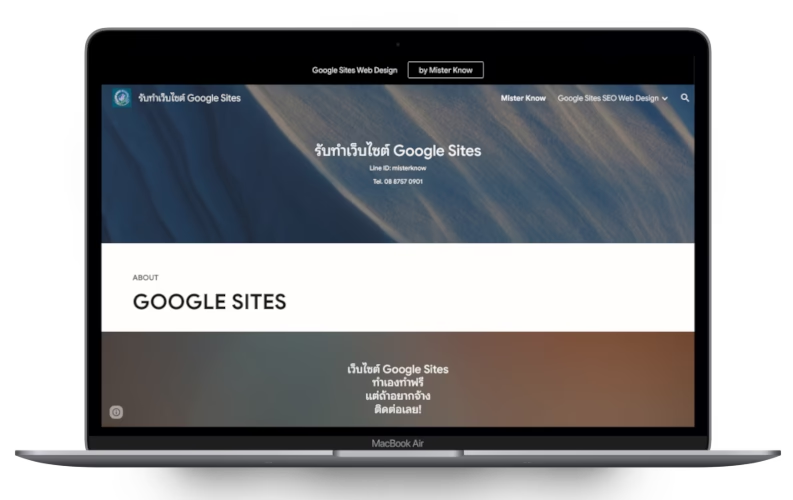
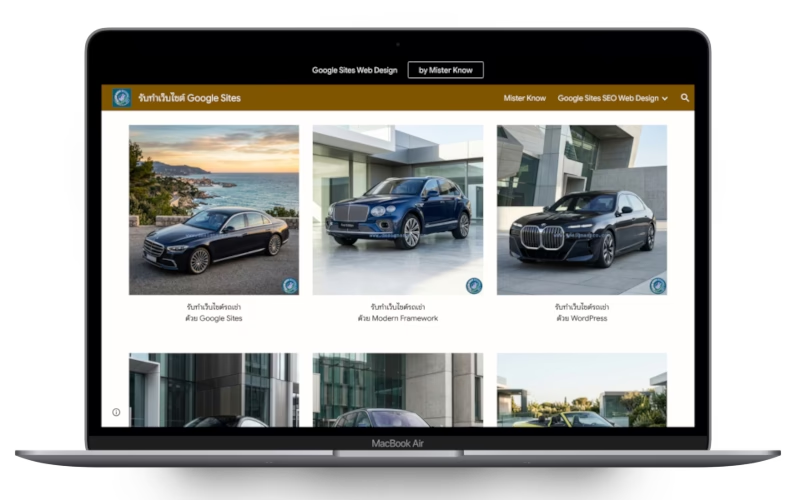
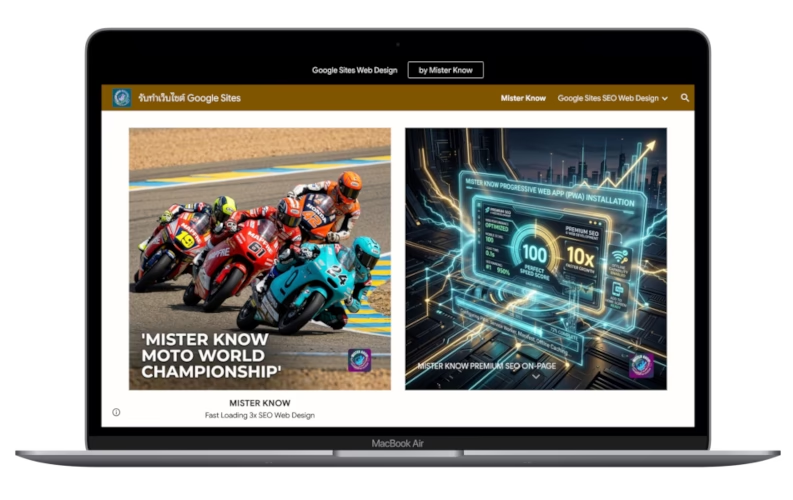
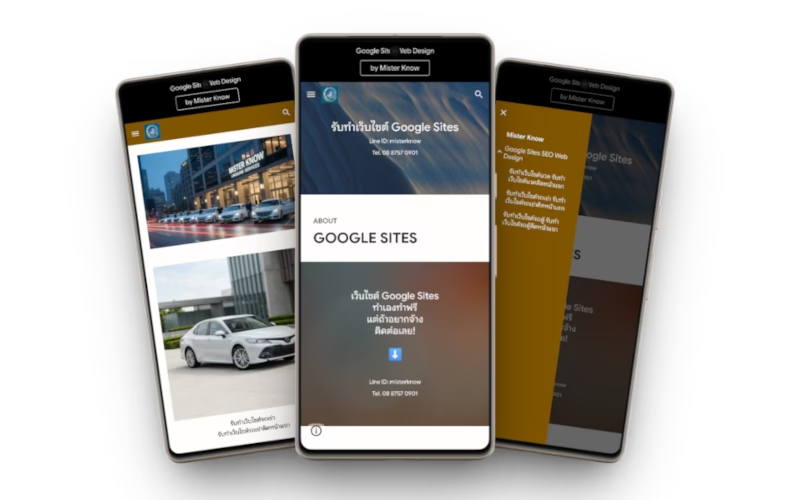
PortfolioGoogle Sites Websites
One review per person
Leave a review before service to receive a discount
Review your completed website and receive a free update, subject to terms
Leave Mister Know a good review, a great review, or a shamelessly flattering one—and Mister Know’ll throw in the PWA feature for free!
A website you all can install and use like an app.